(This image was created
by Gary White,
and is used with his permission)
Last Modified:
January 22, 2004
Ken Mayer, Senior SQA Engineer
dBASE, Inc.
NOTE: This document was originally written for Visual dBASE 7.0/7.01, it has been updated for dB2K (release 1) to include information about new properties, events, etc., and any new controls since the document was first written. If a control is new it will be noted. Everything in this document should be appropriate for later versions of dBASE (dBASE Plus, etc.)
In addition, this document refers to dB2K a lot, but unless it is about a dB2K specific aspect, the text can be used for Visual dBASE 7.0 through Visual dBASE 7.5.
This document is aimed at helping a developer who is new to the dB2K development environment get started understanding and using the Report Designer, the Report Engine, and most importantly the Report Objects in dB2K.
However, this document is only going to be aimed at getting the developer started. I have written a pretty detailed paper which was presented at Icon 98, and is in the Knowledgebase. It gets into some of the nitty gritty.
The idea for this HOW TO document is to make sure that the developer attempting to use these powerful reporting tools that ship with dB2K can make sense of them -- to that end, I will discuss how the many different report objects relate to affect each other, and how to create reports, both with the designer and programmatically.
One final note before jumping in feet first: Labels are just reports with a different extension (.LAB instead of .REP) and multiple streamFrames (one per label). While it is possible to set up a group on a label, I am not really sure that it would work very well ... (that sort of goes against the way that I, at least, see labels working ...) Other than that, everything discussed in this document is relevant to labels as well as reports.
The report engine in dB2K is a bit daunting to someone starting out. So, before we get into the mechanics and details, let's take a look at things from a "higher level".
The report engine in dB2K is what is called a "banded report" engine, in that the processing of your data occurs through "bands". The bands are processed (when the report is rendered) in a specific sequence, as are the other controls of the report.
In addition, this engine is also what is called a "Single-Pass" report engine -- this means that in order to process the report it makes one pass through all objects (and in the process, through the table), rather than making multiple passes through the data and controls (which is what would be needed to, say, generate a "Page 1 of x" type output -- this can be done, but is more complex than what is covered here ...). Very few report engines do a "multiple pass" automatically, as the amount of processing involved is horrendous (and time consuming!).
(This image was created
by Gary White,
and is used with his permission)
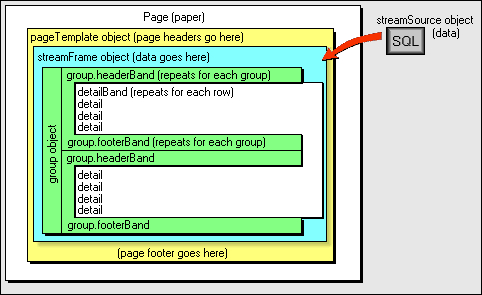
We are going to start from the "inside" and work our way back out to the big picture.
The Bands
There are three primary "bands" in a report -- the
detailBand, and attached to a group there are the headerBand
and the footerBand.
The detailBand is where the details of your report will go. For a simple report, this is where all of the data from each row of a table is actually rendered (generated or printed). Your details are shown by placing what this document calls "Visible Controls" (Text, Image, etc.) onto the detailBand (used to display fields and so on).
The group object is designed to help you group your data in a way that makes sense. A very simple example is perhaps with a customer table -- you might want all the customers in each state grouped together. The group is how you do that. At the beginning of each group, you might want to note which state is being currently displayed -- this would be done with the group's headerBand. If you wanted to display a count of all the detail records that were displayed for that state, you might (probably) do that in the group's footerBand. (If you need to do a parent/child table report, the group's headerBand and/or footerBand would normally be used to display data from the parent table's rows, and the detailBand would be used to display the child table's rows.) In order to show the fields, you would also use "Visible Controls".
The report engine will automatically handle a lot of the processing for you -- if you have only a detailBand in the report, it will loop through your table and generate one detailBand for each row or record in the table.
If you have a group or groups on the report, the report engine will examine each row in the detailBand and determine if it belongs in the current group, or if it belongs the next group. It handles the necessary processing to do the group "break".
Stepping Up A Level - streamFrame
and streamSource
In order to accomplish
the above, the detailBand and group's headerBand and footerBands must be controlled
in some fashion. There are two objects involved here -- the first is the visible
one -- this is called a streamFrame. The streamFrame appears as a container
on the report, and is used to control the layout of the report. Your detailBand
and other bands are placed on a streamFrame (which is placed on a pageTemplate
-- see below).
However, more importantly, in the background there is a streamSource object, which is linked to your tables. The streamSource is what actually controls the output -- this is what looks at the data, and loops through it row by row, and tells the report engine what to print.
Stepping Up Yet Another Level
- pageTemplate
When we step back a bit, and look at the larger picture, there
is the pageTemplate -- which is used to lay out the report's page design.
By this, I mean that you can set your report's margins, you can determine what
you wish to print on each page of the report (commonly called headers and
footers, although there are no such objects directly in this engine -- this
is done using the "Visual Controls"), and so on.
The pageTemplate is exactly what it sounds like -- it is a template. When we get to examining the properties of the pageTemplate later in this document, we will see more ...
The pageTemplate is also the object that visibly holds (or contains) the streamFrame, which in turn visibly holds (or contains) the detailBand and group header and footerBands.
Up To The Top Level - report
Finally, stepping all the way back and looking at the big picture,
we have the report object itself. This object is what is used to control things
like where the report is being sent to, what pages of the report to print, through
the printer object (attached to the report object) whether the report is portrait
or landscape, and all of that.
How The Report is Rendered (Generated)
Without getting into all of the details, the following
is an explanation of how a report is rendered. The term "rendered"
is really just another term for "generated", but I am using it here
because the method of the report object that actually does the generation is
called "render".
When you render a report, the following things happen (this is from a different document -- my ICon 98 paper covering reports):
(This flowchart was created by Charles Overbeck at Inprise/Borland, and is used with permission.)
As you may have seen if you've brought up the report designer in dB2K, there are a lot of new and different objects. One suggestion, if you have not already done so is to try to get hold of the CONTAINER.HOW document that Alan Katz has done. It should be available in the Knowledgebase. The reason I suggest this is that containers are at the heart of what is happening in the report engine, and the better you understand containership in dB2K, the better prepared you will be to work with reports in dB2K. In addition you need to have at least a decent understanding of the data objects (see OODML.HOW, also in the Knowledgebase).
So ... there are all these objects -- what are they, and how are they related?
This section of this HOW TO document will cover each of the report objects, discussing their relationship a bit with the other objects, and will go over the main properties, events and methods of each. If you do not understand the terms "properties", "events" or "methods", check online help, as well as CONTROLS.HOW in the Knowledgebase -- CONTROLS.HOW discusses form controls, in addition the terms properties, events and methods are explained there).
Note that we are going in pretty much the opposite sequence from the first section of this document -- we are starting at the outside and working our way down to the fine details.
As you might expect, the first object you need to be aware of is the report object itself. The report object is the "big container" for everything. It is very similar to the form object in that sense, but it has different properties, events and methods.
While from one aspect the report object contains the "whole report", when you start looking at how everything works, it really only can contain six types of objects (some of these will be discussed in great detail later in this document):
Any other controls on a report are contained by the pageTemplate, streamSource, and other objects.
The following properties, events and methods are ones you should be aware of:
There may be situations where using the metric setting of "chars" is useful -- specifically when using monospaced fonts. This can allow you some very precise alignment of your text controls. (It's actually sort of like going back to the old @ SAY commands ...)
Another spiffy thing is that the printer object has a call to choosePrinter(), which allows you to set the printer for the current report only ... (If you use _app.choosePrinter(), you affect your whole application. If you use reportname.printer.choosePrinter() you only affect the current report.) As a developer, you could call the report.printer's choosePrinter() method, and after the user has interacted with that, then you could render the report (this would be very useful in a networked office, where there might be several printers available to any individual user ... they could select the printer that they want the report to go to ...).
The printer object has the following properties and methods you should be aware of:
The reportGroup object has the same properties, events and methods of the group object (see the discussion of this later in this document), but the parent of the reportGroup is the report itself, rather than the streamSource.
The reportGroup's groupBy property should be empty, and while you can try to place something there it will be ignored.
Interestingly, there is a "headerEveryFrame" property for the reportGroup, which does nothing, nor does the headerBand's "beginNewFrame" property, as placing a reportgroup's headerBand onto a report forces the detailBand to start on the next streamFrame (page if only one streamFrame).
On the other hand, the footerBand's "beginNewFrame" property will ensure that the footerBand ends up on its own streamFrame (page if only one streamFrame), if this property is set to true.
There is a section of this document that shows the relationship of the various controls by discussing the sequence of events as a report is rendered.
It is possible to programmatically control all of the above, and to use some of them in special code to test for specific conditions (such as isLastPage).
The pageTemplate object is what is used to define the layout of the report's page. This includes your margins (top, left, right, bottom), and any controls you wish to print as "headers" or "footers" for each page of the report. For example, you might wish to always print a page number at the bottom of each page of the report -- if you place the text control for this under the streamFrame (we will discuss this object momentarily), it will print for every page at the same location each time.
The pageTemplate is a container for the following controls:
The pageTemplate is aptly named, since it is literally what defines the layout of the page, or is the template for the page.
It is possible to use multiple pageTemplates, for example you may wish to design a cover page that only prints once, or you may wish to have one pageTemplate for even numbered pages, and another for odd numbered pages. (This document does not discuss the mechanics of multiple pageTemplates -- for details on how to do use multiple pageTemplates, see the my paper on reports from ICon 98 in the Knowledgebase)
NOTE: The pageTemplate must be named "pageTemplate1" if it is the only pageTemplate in the report, and if there are multiple pageTemplates, the second must be named "pageTemplate2". Even though you change the name property, it will be re-set back to what is required by the designer.
The pageTemplate has the following properties and events that you should be aware of:
Suggestion: Set the margin properties here to use as much of the paper as you need to. The streamFrame's left and width properties should be set to go out to the edge of the pageTemplate (unless you are using multiple streamFrames).
The margin properties can be set programmatically, which may be useful if you are concerned with binding offsets and such. (In my ICon 98 paper, there are a couple of ways of doing this mentioned ...)
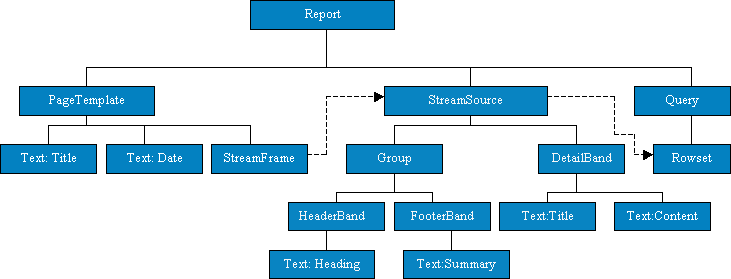
The streamSource is the conduit between the rowset object (in the case of a multiple-table report, the controlling or master/primary rowset) and the detailBand on the streamFrame. The streamSource therefore controls the output to the streamFrame.
Each streamFrame is assigned to a streamSource, and multiple streamFrames (if used) can be assigned to the same streamSource (this is the default behavior). The data in the streamSource is rendered to all streamFrame objects linked to the streamSource.
If your report is using groups, they will also be assigned to the streamSource, and you will see, in the inspector, entries for each group object (it is possible to "nest" groups ...).
NOTE: The streamSource must be named "streamSource1" if it is the only streamSource in the report, and if there are multiple streamSources, the second must be named "streamSource2". Even if you change the name property, it will be re-set back to what is required.
The streamSource is a container for:
If you examine all the code generated by the report designer, it might appear that the streamSource is also the container for the rowset object -- this is not quite true -- it holds a reference to the rowset object, but is not the container (the container of the rowset is the query object) ...
The following properties and methods are available to the streamSource:
The streamFrame object is what is used to define the actual output of your report. The streamFrame is controlled by the streamSource object (noted above), but it is not contained by it. The parent object of the streamFrame is the pageTemplate.
It is possible to have multiple streamFrames on a report. This gives you the option to do reports with "multiple columns", and is actually how labels are designed using the label designer (one streamFrame per label).
If you have multiple streamFrames, the default is that each streamFrame uses the same streamSource. If this is the case, you only have to design the layout for the first streamFrame -- after that, if you have more than one streamFrame, all you have to do is set the streamSource pointer (see below) to the streamSource that you need, and you are set.
The streamFrame appears (in the designer) to be the container of the detailBand and group (and group headerBand and footerBand) objects, but these are really contained (and more importantly, controlled) by the streamSource. Visually, the streamFrame is sort of a container for these, as they cannot exist outside of the streamFrame, but the actual parent or container of these controls is the streamSource.
The streamFrame control has the following properties and methods that you should be aware of:
Suggestions: If you are using one streamFrame (the default for most reports), set the streamFrame's left and width properties so that they go to the edge of the pageTemplate. The pageTemplate has already set the margins for you, and if you have your streamFrame smaller inside the pageTemplate, then you are setting up even more "white space" around the edge of your report.
This is one of the most important parts of the report, as it is where you place the controls you want to print (or display) for each row in your detail rowset. See the section below on Visual Controls regarding the actual controls you can use for this.
The detailBand is really a subclass of the band object (if you look at this in online help you will find the actual details in the band object's definition).
The detailBand has the following properties, events and methods that you should be aware of:
Suggestions: Using a combination of the onRender event, and the renderOffSet property and streamSource's beginNewFrame method, you can determine if there is enough room to display or print the next detailBand (or row of the table) after the current detailBand (or row) in the streamFrame. If not, call the streamSource's beginNewFrame to force the next row to the next streamFrame (or page).
   /* sample here assumes the report's metrics are set
      to inches, check to see if we have less than
      1/2 inch -- if we do, there's not enough room
      for the next row to print, so force to a new
      streamFrame */
   function detailBand_onRender
      /* this.parent.parent points to the report --
         note that the parent of the detailBand is not the
         streamFrame, but the streamSource - in order
         to get to the streamFrame, we have to go to the
         streamFrame's parent, which is also the
         streamSource's parent -- the report */
      if (this.parent.parent.streamFrame1.height - ;
                                  this.renderOffSet < .5)
         this.parent.beginNewFrame()
      endif
The group object is how you tell the report engine to change the processing when a specific field (or fields) change value. This is useful in a lot of reports, from single table to multi-table (it is practically required for multi-table reporting). Example: If you are printing a listing of customers from your customer table, and you wish all of the customers in one state to be grouped together with a heading for each state, and possibly some totals, you would use a group.
The group object includes a group headerBand and a footerBand -- the headerBand prints at the top of the detailBand, and the footerBand prints at the bottom of it. These two objects have the same properties/events as the detailBand, which is derived from the band class.
Note that there is a difference between the reportGroup and a "normal" group. The reportGroup affects the whole report, and is really designed to give you the headerBand and footerBand (which as described elsewhere in this document appear only once in the report ...). The "normal" group object is used in the regular processing of your data to handle grouping the data itself.
Groups themselves have the following properties, events and methods (the baseClassName className, name and parent properties are not listed here intentionally):
NOTES: You can use these same calculations in the report's footerBand.
To place these onto the group's footerBand manually (rather than using the menus to do it), use a text control, and set the codeblock for the text control to:
{||this.parent.parent.agCount({||this.parent.rowset.fields["State ID"].value})}
Make sure that you put
the correct fieldname in the brackets.
Suggestions: when you design a group, the groupBy property is required. However, as noted way back toward the beginning of this document, the report's autoSort property may mess you up unless you set it to false. If it is set to true, it may stream out to the query an additional "ORDER BY" clause, which if unexpected may change the sorting sequence of the data in your report (ignoring the indexName property you may have set for your rowset).
It is possible to "nest" groups in a report if you are doing a more complicated report. You may, for example, wish to group your report on the parent record in a parent/child relationship, and then in the child data, have another grouping of data. Placing two groups into your report will automatically "nest" them one inside the other. It is not possible to have multiple groups that are not nested.
When designing a report, there are a small quantity of stock controls that you can use for your report.
It's opinion time ... This is an opinion of mine that is shared by most, if not all, experienced dBASE developers: Never, ever use a stock dB2K controls for anything! Sooner, or later, you will regret having done so. You will run across something that you need to change on all your reports. That will be a monstrous task, unless you heed this advice. Before you create your first report, you should create a set of base custom controls, upon which all others are based (see CUSTCLAS.HOW for details -- while this document is aimed at forms, the concepts all work fine for reports). The same can be said for your reports. Never use the stock controls. For the sake of simplicity, this document will use stock controls, but you should check out CUSTCLAS.HOW to learn something about creating your own custom controls.
The bit about custom controls having been said, here are details about the visual controls that may be placed on a report, either on the pageTemplate or on a band (detailBand, headerBand or footerBand).
There are quite a few properties, events and methods for these controls. They are not all discussed here. There are many that are discussed in CONTROLS.HOW -- you should check this out, as it covers them in quite a bit of detail. However, there are some properties that have special significance here in the report engine, and we will examine those here.
{||this.form.test1.rowset.fields["test"].value}
This codeblock is evaluated
each time the band is rendered (see detailBand and group above), and will
return the value of the field.
This is important to note. There is a section later on calculated fields that will cover some of this in more detail ...
Well, that's a lot of information to dump on you, and the only way to really understand all of it is to use it. See the sections below on using the designer and programmatically generating reports ...
When you wish to render (generate) a report, there are several methods that can be used in dB2K.
          set procedure to myreport.rep additive
          r = new myreportReport()
          r.render()
This has the advantage
that you can, as the developer, add code that can modify the report's output
property (which is used to determine where the report will "go"
when rendered), and a lot more.
When you bring the report designer up for the first time, parts of the screen will seem pretty familiar if you have ever worked with the form designer (there's the component palette, the field palette, the inspector ...). The primary difference is the main design (working) surface.
The design surface contains two panes -- the left pane defaults to being either closed or nearly closed, so you may want to open it up a bit. The only real purpose of it is to show you the top and bottom edges of the different bands of your report, but it is useful -- especially when working with groups.
The rest of the surface is similar to the form designer. You can drag and drop controls to the surface, and so on.
Here are some suggestions for working in the designer to make your life easier. dBASE, Inc.'s developers know that there are some issues involved with the designer surface (it's not quite as friendly as we, the developer community, would like; and it's not as stable as we would like ...) and have committed to fixing this in a future release of the software, indeed, in dB2K, a lot of the stability issues have been resolved.
You can turn this feature off by right clicking on the report designer surface, and select "Report Designer Properties". In the top set of checkboxes, you will see "Snap to Grid" -- make sure it is unchecked, and then click "OK". You won't have to set this off each time, as this is a system-wide setting.
If you are used to working in Inches, set the metrics to inches. If you are used to working in centimeters or millimeters, by all means, use those settings.
These three items by themselves will solve a multitude of problems that people have when they first get started working with the report designer.
You should consider using custom reports which handle the above, and perhaps some basic other settings (such as pageTemplate margins, streamFrame height, left and width properties ...). By using a custom report to make these settings, you can save yourself the trouble of remembering to make them each time you start a new report. (The concepts of custom forms, covered in CUSTFORM.HOW apply, although there are, of course, differences between custom reports and custom forms ...)
NOTE: When setting your streamFrame to the size you need, be sure to leave room at the top and/or bottom of the pageTemplate for any report headers and footers you want to print. (This is discussed below ...)
Now that we've gone over the basics, how do you design a report in the designer?
The following covers some of the basics. Start by bringing up the report surface by double-clicking on the (Untitled) icon on the left in the navigator.
Suggestion: Before you do a lot of manipulating controls, and especially before you start using the events of some of the controls, save the report and give it a name. A minor bug exists in the report designer -- if you modify an event before saving the report, the report will be named "UntitledREPORT" in the constructor code (the CLASS statement at the top of the code). If you save the report BEFORE you do this, it will name the report whatever you called it (for example: MyReport.rep would give the internal name of "MyReportREPORT" in the constructor code). This bug has been looked at for dB2K, and may have been fixed, but it is still possible to get an "UNTITLEDREPORT" sometimes -- the dBASE R&D team is aware of this.
There are a few more things you may wish to consider doing, including setting the index for the rowset object (in the inspector, click on "Rowset" and click the "I" button, select indexName, and in the combobox that appears select the index you wish to use), and so on.
At this point, the fields palette (if it is currently displayed on the screen -- if not, right click on the report surface and select it) will appear with a list of the fields for your table.
Normally when you work with two or more tables, these are set in a parent/child relationship. The parent table would be the "controlling" table for the streamSource.
The basics for setting up a parent/child relationship with two tables are:
For more details on this kind of thing, see OODML.HOW (in the Knowledgebase).
Note that you may want to consider doing all of your table setup for multiple table reports in a datamodule, at which point you would do something like what is shown below.
To use a datamodule for a report, you simply go to the Navigator, click on the "Datamodules" tab, and click and drag the appropriate Datamodule to the surface of the report. Again I generally move these off to the upper left of the surface so that they are out of the way.
NOTE: DO NOT use the report headerBand and footerBand -- these are for "one time" use -- a report headerBand will only print on the first page, between any text you place on the pageTemplate directly, and the first streamFrame (which in a single streamFrame report means the second page!)This can be useful if you want to create a cover page for a report -- see my ICon 98 paper on reports for details ...
A report footerBand will print after the last streamFrame and before any text you place at the bottom of the pageTemplate, and again will only print once. [NOTE: the report's footerBand will print DIRECTLY after the last item printed in the streamFrame, unless you set the beginNewFrame property to true, in which case it will jump to the next streamFrame before printing, but will print at the TOP of the streamFrame.]
I usually use just text controls, but if you have a logo you wish printed, or you wish to work with a shape control to create a logo of some sort, go for it.
There is usually a main title of some sort, which is text, and often (at least in my reports) a second title control. Under that I usually want to display the date.
Now, with dates, we come to calculated text controls. We will look at this in more depth in a bit, but ...
The problem with dates, is that they are constantly changing. If you want a heading on your report that shows the date the report was printed, such as:
Date: March 21, 1999
You are going to have
to set up something that will be calculated each time the report is generated.
This is actually pretty easy. Drag a text control to the report surface, there are two buttons when you click on the text property in the inspector. Click the one on the right "T" (which stands for "Type"). Select "Codeblock", and then enter the the following as the actual text in the inspector:
{|| "Date: "+date() }
Make sure you press the
enter key after entering this codeblock.
You may need to re-arrange the width and height properties a bit, but this should now display the text you want. Each time you run the report, this will be calculated.
Note that you can also put information in a "footer" for the report, by placing it on the pageTemplate under the streamFrame. (The only custom control for reports that ships with dB2K is a reportPage control - you may want to place this at the bottom of the pageTemplate ...)
It's easier if, before doing much else with the report, to put at least one field from your table onto the surface of the detailBand. You can come back and modify it and put the rest of the detailBand together after you do other things, like designing your group bands, but if you do this, you will not be confused later.
It also may help to set the height property of the detailBand to a value greater than zero. If you are working with your report metrics set to inches, you may want to start the detailBand at 1" or maybe .5".
WARNING: There are some issues (at least one bug in the report designer) involved when dragging controls and placing them into your bands (detailBand, headerBand, footerBand). One of these is discussed elsewhere in this document -- if you turn the "snap to grid" property of the report designer off, it will solve some of these problems.However, it is best to not try to place a control between two other controls, especially if there is any chance of an overlap of the controls. You are better served to move the item on the right out of the way, place the control that will go between the two, and then move the other control back. This seems like a lot of work, and it shouldn't be necessary (the developers at dBASE, Inc. do know about it, and we have every hope that in a future release I can remove this warning completely ...)
Z-ORDER -- Note that while the form designer has an option to set the Z-Order (sequence the objects are streamed out to the source code), there is no such option in the report designer. If you place your controls in the wrong order, you may get some ... interesting ... results in your report. You may need to physically move blocks of code in the constructor around to get them in the correct sequence. (This is particularly important if you have calculated fields that rely on the value of other calculated fields -- the sequence in which they are calculated will be very important!)
In general, you may want to consider placing all of the controls that will be used in the band you are working on in a general layout, and after you have everything that you intend to put into your band, take the time to put them precisely where you want them.
One interesting problem I have noted is that if there isn't enough room horizontally to place a text control, the designer will make it wrap vertically. This gets weird. The real problem is that if you re-arrange the report a bit so that there is now room horizontally, and you reset the width of the control so that the text appears the way you expected, the height of the control may still be what it was when the designer modified it. Check the height if you see this happen -- you may need to re-adjust it. If you do not, the effect will not be apparent until (or unless) you are using a variableHeight detailBand (height property of 0, expandable property set to false) -- the detailBand may not be as small as you expected because the height of the text control in question is keeping it from getting any smaller. (I found this one when working at Borland (it was still named that at the time) and got assistance on it from one of the developers.)
If you are working with a parent/child relationship, the normal setup is to place the child table information in the detailBand, so be sure that any field you place on the detailBand is from the child table.
If you are not doing a grouped report, skip the next section.
In order for groups to work, the data must be organized properly. This means that either you set an indexName for your rowset, or use a "group by" clause in the SQL for your data. I recommend using the indexName ...
If you do NOT set the autoSort property of the report to false, then it will automatically set a "group by" clause in your SQL statement for your query. This may give you undesired results. It uses the "groupBy" property of the group object to do this.
There are two ways to get a group placed onto a report.
WARNING: There is a bug in Visual dBASE 7.x code (this is not an issue in dB2K) that places the aggregate calculations and their text all in the same place in the band (the left property is the same for each control). You will need to move these to the appropriate locations in the footerBand yourself ...This does not happen with Wizard generated reports, but will happen if you use the menu options to place these into your report's footerBand for you.
While the second option may seem like "the way to go", I find that I prefer doing more of the work myself, rather than using some pre-determined font colors, and so on, and therefore I tend to use the first one. The biggest advantage to the second is that it can set the aggregate calculations for you (and setting these yourself is a bit tricky ...).
Required: Once you have the group control on the report, there are some things you NEED to do. You may need to select "group1" in the inspector's combobox to be sure you have that control's properties appearing ...
upper( :state: + :last name: )
You would, in this
example, select "State" for the groupBy field.
NOTE: if you do not have the autoSort property set to false, this selection will cause the SQL property of your query to have the GROUP BY clause added or modified.
If you are doing a parent/child report, make sure that the field used is from the parent table, or you may get some truly odd results.
If you wish to add a headerBand, I recommend setting the height to a value that is greater than zero. This will allow you to place controls onto the surface without accidentally placing them in the detailBand.
If you wish each group break to start on a new page, select the beginNewFrame property and set it to true.
You can now grab fields from the field palette that you wish to appear in the headerBand (or footerBand). Note: if you are doing a parent/child table, the fields that appear here should be in the parent table.
There are many ways to design a report. I am assuming a not-too-complex report for now, although of course you may need something more complex. (This document is aimed at getting you started and comfortable with everything ...)
The two basic layouts for reports are columns (each field is it's own column) -- the report wizard calls this "tabular", and a more free-form layout (the report wizard calls this "columnar" which is a bit confusing to me ...), where you may have different fields on different lines in the detailBand.
If you are doing a report with the fields in columns, you normally will want headings at the top of the columns. You can do this in one of three ways:
The designer, by default (text on top), sets a text control onto the detailBand, and sets the canRender event to the following codeblock:
{||this.parent.firstOnFrame}
Which means that if
this is the first time the parent (detailBand) is rendered in this streamFrame,
you can render this text control, otherwise do not -- if this were not
set this way, we would print this text control for each detailBand rendered
- and it is rendered once for each row in the table. This could be a bit
confusing, and would definitely clutter up the report.
Set the suppressIfBlank property to true ... this way the space reserved for this text control will disappear for each row displayed except the first on the detailBand.
You can control this by right clicking on the field palette, and selecting "Customize Tool Windows ...", and in the dialog that appears, selecting the "Add Field Label" setting you wish. (For what it's worth, I prefer to set this to "None", and place my own text controls on the report ...)
When you drag a field from the field palette to the design surface, whether you place it on the pageTemplate (not usually a good idea), or on the detailBand or a group headerBand or footerBand, the text property will appear as a codeblock, similar to:
{||this.form.test1.rowset.fields["test"].value}
This codeblock gets evaluated
each time the band is rendered.
See below on calculated fields for more details on how you can modify your calculations.
There may be some interesting results in your report if you have a null or empty field. See below -- there is a discussion later in this paper on how to handle this.
LARGE TABLE?
One problem that occurs when designing a report with large tables (more
than a few hundred records) -- each time you place a control onto the report,
the designer is actually generating EACH PAGE OF THE REPORT, which
means that it can take a noticeable amount of time from when you place the
control onto the report to when you can then do anything with it.
You can solve this problem by right clicking on the report designer surface, selecting the "Report Designer Properties" option, and selecting under "Rowset Display" the radiobutton for "One Row". This will speed up the work on your report, because you will literally only see one row. This causes one problem -- if your report has various things happening, such as calculations and/or suppressed lines, you may not see the effect on the first row, but ... you can get most of the design work done faster.
Using a DataModule or Query
The following would be done for a datamodule in the datamodule designer, for a query placed directly on a report, in the report designer:
First, select the query by clicking on it.
To create the calculated field, we need to use the onOpen event of the query object. This requires a small amount of coding, which will be written into the onOpen event of the query object (meaning that when the query is opened, we will execute the code). In the inspector, click on the "Events" tab, and then on the onOpen event. Click the 'tool' button, and the editor opens. In the editor, enter the following (this assumes a table with "first name" and "last name" fields that we want to combine to a "FullName" field):
       f = new Field()
       f.fieldName = "FullName"
       // "this" is the calculated field
       // "parent" is the fields array that the field will
       // belong to.
       f.beforeGetValue = {|| trim( this.parent["first name"].value ) + " " + ;
                              this.parent["last name"].value }
       // "this" is the query object which we
       // are using the onOpen event of
       this.rowset.fields.add( f )
If you are doing this with a datamodule, save your datamodule and exit the designer (dQuery, if you're using dB2K), and go back to the report designer (reopen the report -- if the datamodule was already placed on the report surface, you are set; otherwise, drag the datamodule to the report surface).
If you are working on a query object in the report designer, you will wish to exit the designer and reopen the same report back in the designer -- the onOpen event of the query should fire at that point and the calculated field will be available.
If the field palette is not on screen, open it up (right click on the report surface ...). Notice in the field palette that in addition to the other fields in the table, your new field is at the bottom. If you drag that onto the streamFrame, you should see this repeated for each row in the table.
Using the Text Property
(Codeblocks)
There are other ways to do calculated fields in reports, however. As a matter
of fact, the default text control on a report that displays the contents
of a field is usually a calculation, done with a codeblock. The calculation
is performed for each row, obtaining a new value from the field. An example
of what this looks like is:
{||this.form.customer1.rowset.fields["First Name"].value}
If you wanted to, you could modify this codeblock. For example, rather than printing just the first name, you could print the full name, in a similar fashion to what we did previously:
      {|| trim( this.form.customer1.rowset.fields["First Name"].value ) + " " + ;
           this.form.customer1.rowset.fields["Last Name"].value }
This can get a bit tricky, especially with a long calculation, but it is do-able.
Using the Text Object's
canRender Event
Another useful way to do the same sort of thing, and it's even better for
some complex calculations, is to do this in the canRender event for an individual
text control (note that textLabel controls do not have a canRender event).
One relatively simple version of this is to place the city, state, zipcode,
and country information into one text control. To do this, drag the CITY
field onto the streamFrame of the report. You might want to change the name
of the text control, but it isn't necessary. In the canRender event (click
on the events tab, and select canRender, select the tool button, so you
get the editor), do something along these lines:
       rMyRow = this.form.customer1.rowset  // shorten the object reference
       cCity = trim( rMyRow.fields["CITY"].value )
       cState = trim( rMyRow.fields["STATE"].value )
       cZip = trim( rMyRow.fields["ZIP"].value )
       cCountry = trim( rMyRow.fields["COUNTRY"].value )
       // assumes that there is information in the first three fields:
       this.text = cCity + ", " + cState + "  " + cZip
       if not empty( cCountry )
          this.text += "  <B>"+cCountry+"</B>" // bold
       endif
       RETURN TRUE // this is usually added by the report designer
Notice that all of the above can be used with numeric, date and logical values (including combining types) as well as character (this is due to the automatic type conversion feature of dB2K).
WARNING: There is a bug in the report engine that can cause a crash (GPF) every time (the R&D team at dBASE know about it and should be addressing it soon):If you make a mistake in a canRender event that gets evaluated while running the report (testing it, whatever), a dialog will appear asking if you wish to fix it. If you select the "Fix" button, and make any correction to the code in the source editor (which is brought up automatically for you), then save and exit (<Ctrl>+W, or whatever), you will see a GPF.
Interestingly enough, to date, every time I have seen this (and I do it pretty often), the change is actually written to the source code, and if I got it correct, when I bring dB2K back up and re-run the report, all is well.
The way to avoid the crash is to note the place where the problem occurs (you are given information in the dialog), and then select the "Cancel" button, rather than the "Fix" button. This will drop you back to the normal IDE of dB2K. Bring the report into the source editor and make the correction ...
Referencing A Codeblock/Calculated
Field
One of the trickier things involved in working with calculated fields that
are codeblocks is that if you wish to reference the values for these in
other calculations, you may find yourself referring to the text property
(which is not the value you are looking for), rather than the value. The
solution is to force a re-calculation, by adding parentheses to the text
property in the reference, i.e.,;
this.parent.textcontrolName.text() // in the same band
The parentheses act as the call operator, which executes the codeblock.
One example would be to change the value of a text control elsewhere in a report to the value of the current text control:
         function MyText_canRender // the name of the function will vary
           form.pageTemplate1.text3.text := this.text()
        return true
There are two simple solutions -- one is to add a "dummy" record that will always sort at the top of the table -- if your key field (the one you are indexing on) is numeric, set the value in this "dummy" record to 0, if it is character, set it to something that starts with a space, etc. The other fields in the "dummy record" should all contain data. Once you are done, you can then delete this record ...
The second solution is to use a "dummy" table -- one with the exact same layout as the real table, but in the designer you are working off this other table which contains data in all the fields ... once your report is designed, you can simply change the query's SQL statement to the real table.
Null Fields
If you are using DBF7 tables, the BDE uses "true null" support.
This means that a field that has not had a value entered into it may contain
a null value. This can be quite confusing when you try to generate a report,
because the isblank() function is not going to return "true",
but the field doesn't appear to contain a value. Note that empty() does
return "true" in this case.
This isn't a real problem unless you are creating calculated fields in your reports that assume that there are values contained in the fields. If a null value is added to a character string, rather than getting the character plus the null value, you get simply a null value. This works the same way for logical, numeric, date, and character fields ...
The solution to this problem is to check for the null value. The following is assuming your calculation is contained in the text property of the text control:
       {|| trim( ;
           iif( this.form.address1.rowset.fields["last name"].value ) == null, ;
                "", this.form.address1.rowset.fields["last name"].value ) ) +", "+;
           trim( ;
           iif( this.form.address1.rowset.fields["first name"].value ) == null, ;
                "", this.form.address1.rowset.fields["first name"].value ) ) }
Now, the above is a bit complex to store in the text property, and you may want to use the canRender event to do this instead.
A more simple method of doing this is to pass the value of the field through the String class constructor (this converts nulls to empty strings), which has the added advantage of typing the long object reference only once:
       {|| trim( new String( ;
           this.form.address1.rowset.fields["last name"].value ) )+;
            ", "+;
           trim( new String( ;
                this.form.address1.rowset.fields["first name"].value ) ) }
Reports evaluate in what is called 'z-order' (just like forms do); which means that the sequence that objects are defined in the source code file (.REP or .LAB for labels) can be important for certain aspects of a report.
What often happens when creating a report is that you get everything lined up and laid out exactly as you want, and then you add a field or text control somewhere to the report. This last object does not appear necessarily in the correct z-order, and this can cause your report to render differently than you might expect.
There is no layout option to change the z-order for reports as there is in the form designer, so any changes must be done by hand in your source code. (Cut/paste the necessary blocks of constructor code ...)
When creating a report that needs to have blank lines suppressed, follow these rules and you should be ok:
This (suppressIfBlank property) must be set for each control on each "line" of the report that you want to suppress.
Example: For mailing labels you might have two address lines -- but in many cases the second one may be blank. Make sure all of your controls are in the proper z-order, and then check that the second address line (and any subsequent lines such as the city/state/zipcode line) has suppressIfBlank set to true and variableHeight set to false.
Problem: Memos and large character fields, to print properly, must have their 'variableHeight' set to true. At this point in time, the only solution seems to be to print the memo before (z-order) any text that may need to be variable/suppressed ...
variableHeight text controls -- according to one of the (Borland/Inprise) developers:The height that will be suppresed if a text control is blank is determined entirely by its height property. So if you have a variableHeight item with a height of 0, and it is suppressed when blank, nothing will change. However, if your variableHeight item had a height of 200 twips, then other controls would be moved up 200 twips.
Because it's more likely that a variableHeight item will have a very small (or even 0) height property, it may seem that suppressIfBlank works differently on variableHeight items, but it is really a function of the value of the height property.
dB2K comes with a pair of wizards that can be used to help you design reports and labels. However, as with most or all automated tools, they are limited in what they can do for you.
Why would you want to use the Wizards? Well, probably to get a report or set of labels laid out quickly. The report wizard will actually handle setting up parent/child table reports, and other grouped reports very fast, and it can set up the aggregate functions for you.
Why should you not use the Wizards? While they can do some fast layout for you, there are (for reports) some pre-designed color schemes and such that you may not like, and some of it's pre-designed formatting (you don't have a lot of options) are not what you may need for your report, either.
In addition, the Report Wizard ignores your custom report settings, which can be frustrating if you are wanting to use custom reports. You cannot use datamodules if you have any set up. They do not appear in the available table listings ... (the dBASE, Inc. developers are aware of this lack, and we may see a fix at some point)
The Label Wizard has a couple of useful features -- step 2 allows you to set up calculated fields very quickly and visually, and in addition there's a "Quick Address" option which is handy to scan through a list of fieldnames and find the ones most commonly used in labels.
In either case, the best use of them is perhaps as a learning tool -- create a report scenario that is similar to something you want to do, try to do it with the Wizard. If you get something close, examine what was done, both in the design surface, and in the source code editor. You can a learn a lot that way ...
It is possible to create a report completely through your own code. It is also possible (and often desirable) to take a report that was created in the designer and modify it a tad in the process of generating it.
Generating
a Report Through Code
In order to do this, you need to have a pretty good understanding of all the
parts of a report, and which parts are required.
The following includes the required parts of any report -- you can copy this code and use it "as is" and then modify the necessary parts:
   r = new Report()           // report object
   r.metric = 3               // inches for my own sake of sanity
   p = new PageTemplate( r )  // pageTemplate is contained in Report
   s = new StreamFrame( p )   // streamFrame is contained in PageTemplate
   ss = new StreamSource( r ) // streamSource belongs to report
   // must have a query/rowset for the streamSource
   q = new query()
   q.sql = "select * from test" // some table
   q.active = true
   q.rowset.indexName = "someindex" // set index
   q.rowset.first()
   // point streamSource at the query's rowset:
   ss.rowset = q.rowset

   // set properties:
   r.firstPageTemplate := p  // firstPageTemplate of report
   p.nextPageTemplate  := p  // next one, points to first one
   s.streamSource      := ss // assign pointer for streamFrame

   // Title (text) on PageTemplate as a "header"
   p.title = new text( p )
   p.title.text = "Header"
   p.title.width = 2
   p.title.left  = 2

   // Set text control onto detailBand
   ss.detailBand.text1 = new Text( ss.detailBand )
   // the following could be a codeblock as discussed above
   ss.detailBand.text1.text = "whatever"
   ss.detailBand.text1.width = 1     // 1 inch wide
   ss.detailBand.text1.top   = .25   // 1/4" from top of detailBand
   ss.detailBand.text1.left  = .25   // 1/4" from left of detailBand
   ss.detailBand.text1.wrap  = false // don't wrap

   // render it
   r.render()
The hardest part of something like the above is setting the controls on the detailBand, and it gets harder to get a group and group headerBand or footerBand to be "just right".
Modifying
Properties and Controlling Properties Programmatically
This is, in some ways, easier than what is shown above (generating a report
completely by hand ...).
One of the nicest parts of the report tools in dB2K is that they generate two-way code -- meaning that you can work on a report in the designer, the editor, or both -- and any changes made will be reflected either way. This also means that the report itself is dBASE code (now called dBL).
What all this boils down to is that when you run a report, you can actually change properties of the report, the database objects used by the report, and/or the visual (and non-visual) controls of the report itself, before actually rendering the report.
This gives you a lot of power. I have found in several of my reports and labels that I didn't have to have multiple copies of the same report with minor changes to them like I used to in Crystal Reports -- I can have a single report, and before I render it, I can change just about anything -- as long as I know how to get to the specific control or property I need to change.
The important part of this is that you have to create an instance of your report, but do not render it ... this means that you cannot simply issue the command:
do myrep.rep
At least, not if you wish to retain some control ... what you can do is to create an instance of the report, and make changes to your properties, and then render it:
   set procedure to myrep.rep additive
   rMyRep = new MyRepReport() // class name in report file
   // change properties as needed here
   // we'll look at this in more detail ...
   rMyRep.render()            // this is how we actually generate the report
What kinds of things can we do here? Let's examine the possibilities:
          // set the name of the table here:
          cMyTable = "week1"
          // create an instance of the report:
          set procedure to myrep.rep additive
          rMyRep = new MyRepReport()
          // change the table used by the query:
          rMyRep.myquery.active := false
          rMyRep.myquery.sql := [select * from "]+cMyTable+["]
          rMyRep.myquery.active := true
          // now we can render it:
          rMyRep.render()
           // from here on we'll assume that the instance of the report is
           // being done, and concentrate on the actual changes:
           rMyRep.myQuery.active := false
           rMyRep.myquery.sql := [select * from "week1" WHERE somefield = "]+variable+["]
           rMyRep.myQuery.active := true
This code sample uses the WHERE of the SQL select, but you could also use the filter property of the rowset, or the beginFilter()/applyFilter() or setRange()/clearRange methods/events.
rMyRep.pageTemplate1.mytextcontrol.text := "New Text Value"
rMyRep.pageTemplate1.streamFrame1.mytextcontrol.visible := false
This code can be used to turn the visible property on and off easily; you can also set code for canRender and onRender for various visible controls, and much more.
One method of changing values that was not mentioned above, but you may wish to consider, is passing parameters to the report. You could, for example, open a report with:
do MyReport.rep WITH "Some Value"Where "Some Value" could either be a literal value, a memory variable, and so on. You can pass multiple values by placing commas between them ...
Note that the report does not have an onOpen or similar event where you might evaluate this. Instead, you might wish to use the query's (or datamodule's) onOpen or maybe even canOpen (which fires before the query opens) to execute some code to evaluate the parameters ... you could check to see if any parameters were passed (argcount()), and use whatever parameters were passed (argvector()) to modify your code. If no parameters were passed (argCount() would return zero), you might want to set a default value for whatever you were using it for. (For more detail on using argcount() and argvector() see online help ...)
I have used this technique with varying amounts of success, and for the most part recommend using other techniques mentioned earlier in this section of this document. I did, however, wish to point this option out (among other things so people won't say I forgot it <grin>) ...
These are just some examples of what you can do.
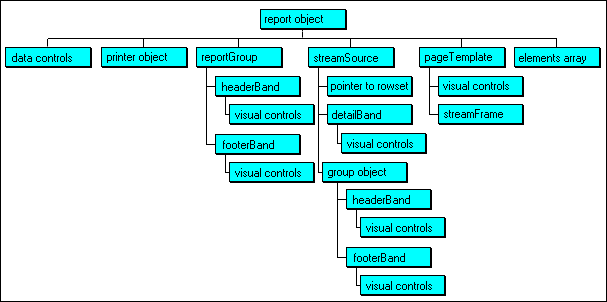
As you work with the controls and work with designing reports, you will find that at various points you need to reference other controls, either going to the report object itself, or to one of the various contained objects. The problem is that the syntax for this gets quite confusing.
If you examine a typical codeblock for a text control that is placed onto a report, you will see something like:
this.form.test1.rowset.fields["test"].value
If you got confused working with the dot syntax in the form designer, this is going to get really messy in the report designer, where you have no choice but to use the built-in containers.
I find that the confusing part for me is when I am using the canRender event of a control to set up my calculations for the control's output, and cannot remember exactly how to get to the streamSource, or to another control somewhere in the report.
What I have found works really well for me is to add in the canRender event, while I am working on that particular bit of code:
   ? this.className
   ? this.baseClassName        // only in dB2K
   ? this.parent.className
   ? this.parent.baseClassName // only in dB2K
In order to get to the streamSource from an object on the detailBand, the full path might be:
? this.parent.parent.className
So what I find helps is if the current "parent" is not the one I need, I add another .parent into the statement.
Another way to find the relationship is to use the inspector object. In the combobox at the top of the inspector you will see a tree listing which can be used to find the correct number of "parents".
(This image was created
by Gary White,
and is used with his permission)
This little chart may be useful in helping determine where to reference an object in your code.
Finally, a few tips and suggestions.
Alignment Tools
When you are working in the design surface, getting your controls to line up
can be bothersome. You can do it the hard way -- going to the inspector for
one control, looking at the values, and then setting the same properties for
other controls; or you can use the alignment tools.
When you are in the report designer, in the toolbar (and in the "Align" menu), are a set of toolbuttons designed to help you line up controls. To use this, select two or more controls that you wish to line up (use <Ctrl> and the mouse to select them), and then you can line them up on the left, the right, top or bottom. (You can also make your controls the same size -- height, width ...)
In addition, you can center controls horizontally in the band your are working in (or the pageTemplate) by clicking on them and going to the Layout menu, and selecting "Align" and then "Center Horizontally in Window". (In most cases you probably don't want to "Center Vertically in Window" ...)
Lines
If you want to place a line between detailBands, there are some options, but
experimentation has shown that your best bet is to place the line at the top
of the detailBand, not at the bottom, or in the group headerBand or footerBand
(if you are using groups). This way, you always have the line at the top of
the detailBand for each row that prints ...
Navigating In Report
Designer
If you are dealing with a large report, it is helpful to view data on various
pages. As it turns out, in the designer, you can see the next page by pressing
the <PgDn> key on the keyboard, and to see the previous page, you can
press the <PgUp> key.
Displaying Numeric Values
Sometimes getting numeric values to display just the way you want them can be
a bit tricky. You should consider using the picture clause or the transform()
function to make sure that your numeric values line up just right in your report.
One simple method of lining your numbers up on the right is to set the text control's alignHorizontal property to Right.
For example, if you have data that must display two digits on the right of the decimal, but in one calculation or field you have a value that has zeros for the digits to the right, you may end up seeing an integer value appear.
If you set a picture clause, you can get the value to always display two digits on the right of the decimal (999.99, for example).
In addition, in some cases, you may want to display percent symbols and such -- you may want to use transform() (see online help for details) to get everything to line up.
The dBASE Newsgroups are a good place to ask questions, and also a good place to get ideas. I get a lot of ideas for these HOW TO documents from there. The following are Report ideas based on questions I have either seen in the newsgroups or gotten from private email (or other) discussions ...
Parent
Table with Multiple Child Tables
After some experimentation, it appears that it is possible to create a report
that uses a parent table with more than one child table, where the child tables
are not directly linked to each other (except through the parent). Actually,
this may be the only way to do a report with multiple child tables at
all -- this is due to the way the streamSource processes the tables ...
However, this cannot be done by simply placing a series of query controls onto a datamodule or report, and using the masterRowset and masterFields properties.
In order to make something like this work, you must create the appropriate SQL statement.
The following SQL statement can be placed into the SQL property of a query (either in a datamodule or in a query control placed directly onto the report's surface). Note that this creates a read-only query, but for reports this is no problem.
   SELECT * FROM "testprim.dbf" Testprim ;
      FULL OUTER JOIN "testdet1.dbf" Testdet1 ;
      ON  (Testprim.LinkField = Testdet1.LinkField)  ;
      FULL OUTER JOIN "testdet2.dbf" Testdet2 ;
      ON  (Testprim.LinkField = Testdet2.LinkField )
The tables are linked using a field called "LinkField", and the table names are "TestPrim" for the primary (parent) table, and "TestDet1" and "TestDet2" for "Test Detail 1" and "Test Detail 2".
What this does is generate a "flat file" for you, so when you examine the field palette in the report designer, the fields will all be under one table, rather than on separate tabs like they normally appear.
Note that this "flat file" query that is returned does not have any index tags.
If you need to do this for more than three tables, I recommend creating an .SQL file in the source editor, and then setting the SQL property of the query used to point to the .SQL file. The reason for this is that, as you can see from the above, the length of the actual statement is pretty long. At some point you will hit the source editor's limit for line-length, not to mention a practical line-length limit. (The SQL property will scroll off the screen, making it very difficult to read, debug, modify ...)
Once you have your SQL statement set properly, the following things need to be done for this to work:
If you lay your report out in columns, you might use the "suppressIfDuplicate" property to deal with repeating data between the child table fields (the rowset created is interesting -- you need to read up a bit on how this works ...).
There is probably more, but hopefully by the time you get to this point, you can figure it out with the help of this document.
Master/Detail Reports With No Detail in Some Records
Your application may be set up in such a way that it is possible to add master
rows to a table without adding detail rows. If this is the case, you will find
that your reports may act funny if you try to do reports that use these tables
in the same relationship ...
Specifically, you will find that your report generates "At end of set" type errors and stops processing.
There are two ways I can think of to avoid this.
Option 1 - Use the canRender
Event
The first is to check the child rowset to see if you are at the endOfSet (this
would be done in the canRender event for each control that refers to the detail
rowset). The canRender might look like:
{|| NOT form.detailQueryName1.rowset.endOfSet }
And of course, if you are set to do more in your canRender event, you would want to not use a codeblock as shown above, but instead, you could do something like the following:
   function Text1_canRender
      if form.detailQueryName1.rowset.endOfSet
         return false // cannot render
      else
         // whatever code you need ...
      endif
Option 2 - Use SQL Joins
Instead ...
The other way to avoid the problem is to use a SQL INNER JOIN (similar to the
section above with multiple child tables, but with only two tables). This creates
a single rowset, with every field you specify in it from each table. What this
will do is if there is no detail row, the master row will be there with empty
fields for the detail ... You might want to still use at least one canRender
on a text control to state "no detail for this row" or whatever, but
this would neatly side-step the error mentioned earlier ...
Printing
a Report From An Array
This one sounds like it couldn't be possible. However, it turns out that it
is. The only thing you need is a dummy table with a single row in it (and the
row does not have to contain any data in the fields), and an array that contains
information you wish to print.
The trick is that the report engine really wants to have a rowset to assign to the streamSource. However, the rowset cannot have more than one row, or you will generate multiple copies of the detailBand -- one for each row.
The code below assumes that the table "Test" exists and has one row in it. The rest of what you need is in the code -- note that this is simply generating the report completely in dBASE code (dBL). You could actually design most of the report in the report designer, and then process just the "detail" loop (the part that loops through the array and puts text controls into the detailBand) if you wished.
   // create array for testing:
   aMyArray = new Array( 5,2 )
   for i = 1 to 5    // rows
      for j = 1 to 2 // columns

          aMyArray[ i, j ] = "Row "+i+" Column "+j

      next  // j
   next // i

   // create report by simply making sure we have all
   // the necessary objects. Once we get to the detailBand,
   // then we have to worry a bit ...
   r = new Report()
   r.metric = 3 // inches for my own sake of sanity
   p = new PageTemplate( r )  // pageTemplate is contained in Report
   s = new StreamFrame( p )   // streamFrame is contained in PageTemplate
   ss = new StreamSource( r ) // streamSource belongs to report
   // must have a query/rowset for the streamSource
   q = new query()
   q.sql = "select * from test" // dummy table with one row
   q.active = true
   q.rowset.first()
   // point streamSource at the query's rowset:
   ss.rowset = q.rowset

   // set properties:
   r.firstPageTemplate := p  // firstPageTemplate of report
   p.nextPageTemplate  := p  // next one, points to first one
   s.streamSource      := ss // assign pointer for streamFrame

   // Title on PageTemplate as a "header"
   p.title = new text( p )
   p.title.text = "Header"
   p.title.width = 2
   p.title.left  = 2

   // The detailBand is automatically created with the
   // streamSource ...

   // detailBand needs objects on it:
   for i = 1 to aLen( aMyArray, 1 )    // rows
      for j = 1 to aLen( aMyArray, 2 ) // columns

          // main value used in other stuff:
          cCreateIt = "ss.detailBand.text"+i
          cCreateIt += j

          // create it:
          cActuallyCreateIt = cCreateIt + " = new Text( ss.detailBand )"
          &cActuallyCreateIt.

          // text property
          cSetText = cCreateIt+".text = '"+aMyArray[i,j]+"'"
          &cSetText.

          // width:
          cSetWidth = cCreateIt+".width = "+1 // 1"
          &cSetWidth.

          // top:
          cSetTop = cCreateIt+".top = "+(i*.25) // 1/4" high?
          &cSetTop.

          // left:
          n = iif( j > 1, (j-1)+.25, 0 )
          cSetLeft = cCreateIt+".left ="+ n  // 1" wide?
          &cSetLeft.

          // Wrap
          cSetWrap = cCreateIt+".wrap = false"
          &cSetWrap.

      next  // j
   next // i

   // try rendering it
   r.render()
This document is a "beginner's guide" to the report engine of dBASE, so not every topic has been covered in the detail it might deserve (or you might specifically need).
As with many of the HOW TO documents, the idea is to get you started. For more details, the paper I wrote and presented for ICon 98 is in the Knowledgebase in the Intermediate section as "Tricks with Reports and Labels".
SPECIAL THANKS:
To Gary White for making me re-think a lot of my approach, and some (as usual)
high editing and ideas, not to mention the spiffy image he did that shows the
relationship of the different bands and other report objects.
Thanks to Phillip Hansen and Bob Rimmington for suggestions to improve this as well.
DISCLAIMER: the author is an employee of dBASE, Inc., but has written this on his own time. If you have questions regarding this .HOW document, or about dBASE you can communicate directly with the author and dBVIPS in the appropriate newsgroups on the internet..HOW files are created as a free service by members of dBVIPS and dBASE, Inc. employees to help users learn to use dB2K more effectively. They are edited by both dBVIPS members and dBASE, Inc. Technical Support (to ensure quality). This .HOW file MAY NOT BE POSTED ELSEWHERE without the explicit permission of the author, who retains all rights to the document.
Copyright 2004, Kenneth J. Mayer. All rights reserved.
Information about dBASE, Inc. can be found at:
http://www.dbase.com
EoHT: BEGREP.HTM -- January 22, 2004 -- KJM